

AudioPen Simple mode
The same AudioPen, easier to use.
Simple mode is a setting in the AudioPen apps for iPhone and Android. Every screen gets bigger text, fewer buttons and a name on every button. You still just talk, and AudioPen still turns it into clear writing.
Turn it on in Settings. Switch back whenever you like.
Easier on every screen
What does Simple mode change?
It's for anyone who'd rather talk than hunt for the right button. And if you're setting AudioPen up on a parent's or grandparent's phone, it's the setting to turn on first.
Bigger text
Your notes and menus are larger on every screen. No squinting.Fewer buttons
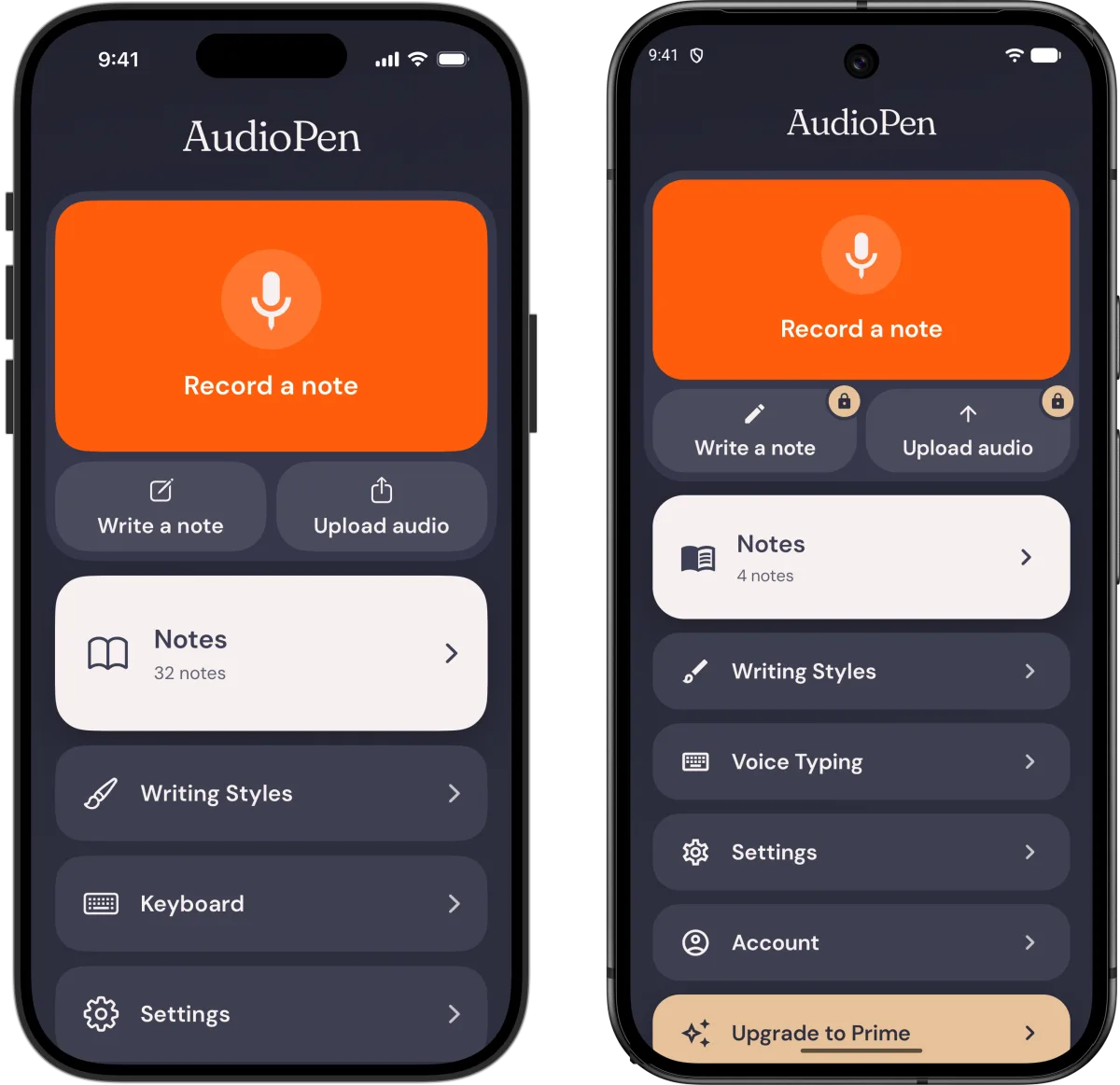
Each screen shows one thing at a time. The home screen starts with one big button: Record a note.A name on every button
No guessing what a little icon means. Every button says what it does, in plain words.
Every feature is still there. Your notes, writing styles, voice typing and settings each have their own button on the home screen.
The real screens
What does AudioPen look like in Simple mode?
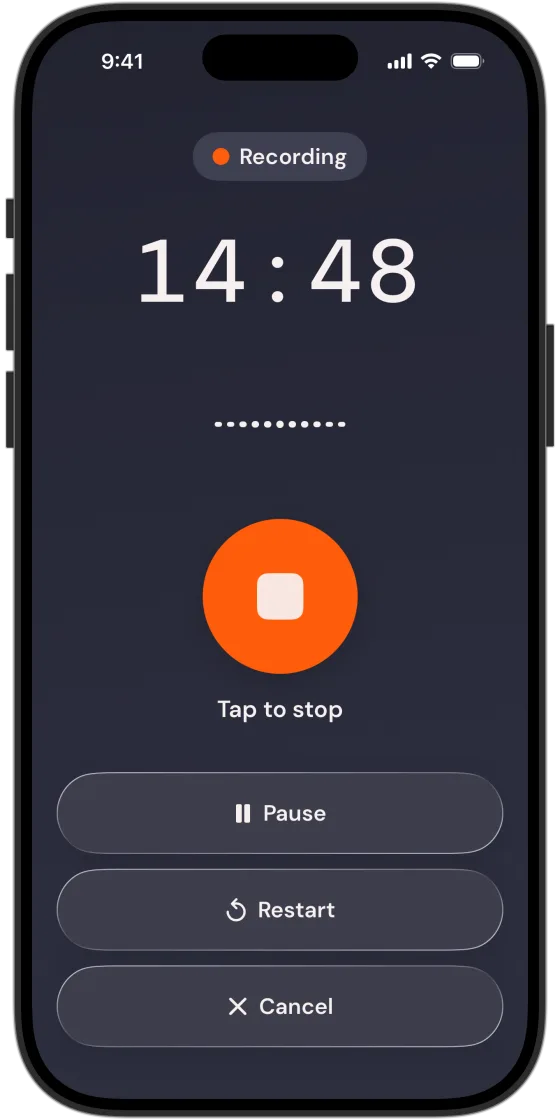
Record: one big button stops the recording. Pause, Restart and Cancel are spelled out under it.
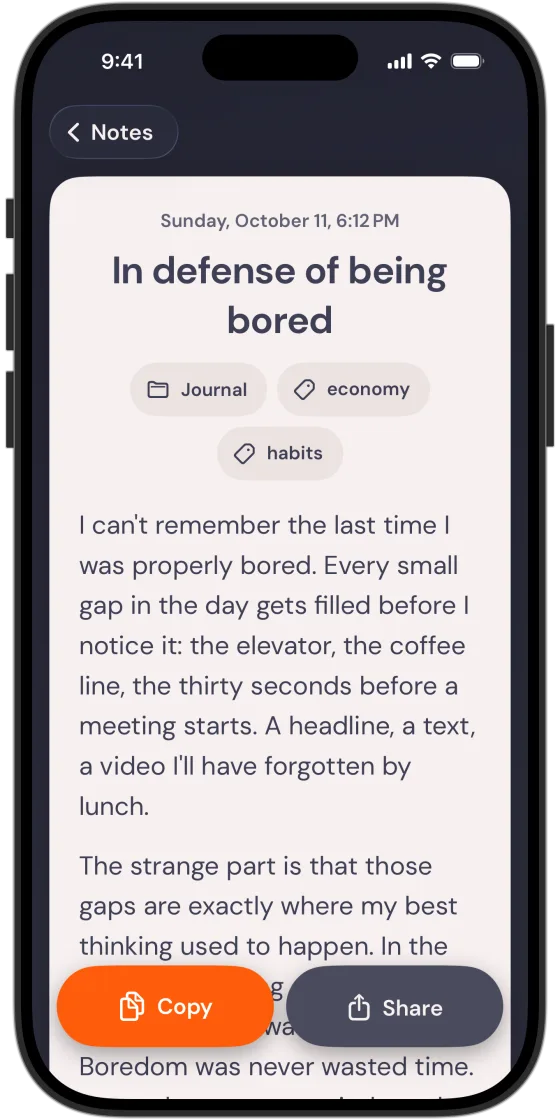
Read: your ramble comes back as a clear note in large text, with big Copy and Share buttons.
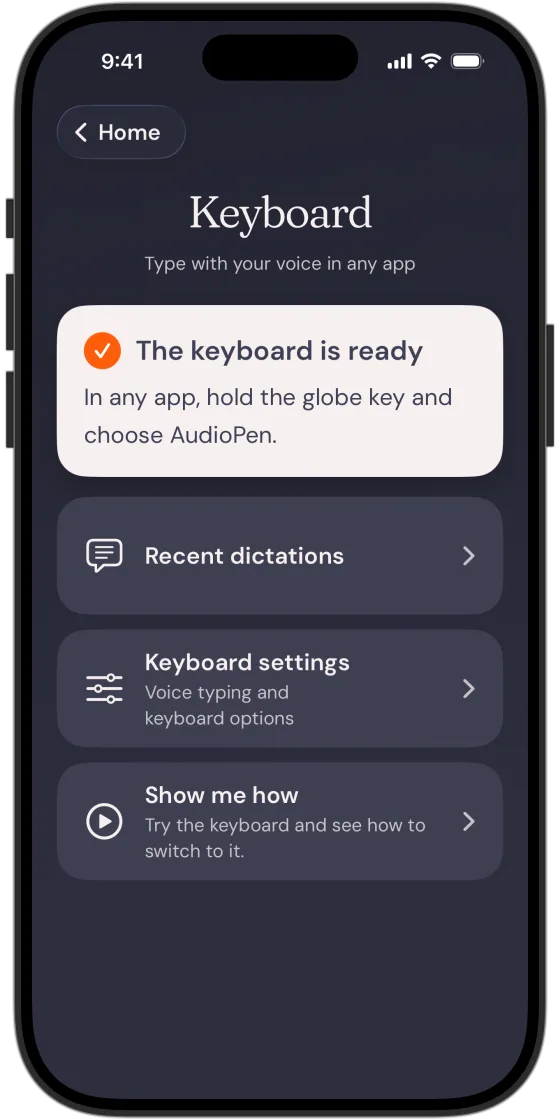
On iPhone: talk instead of type in any app. Hold the globe key and choose the AudioPen keyboard.
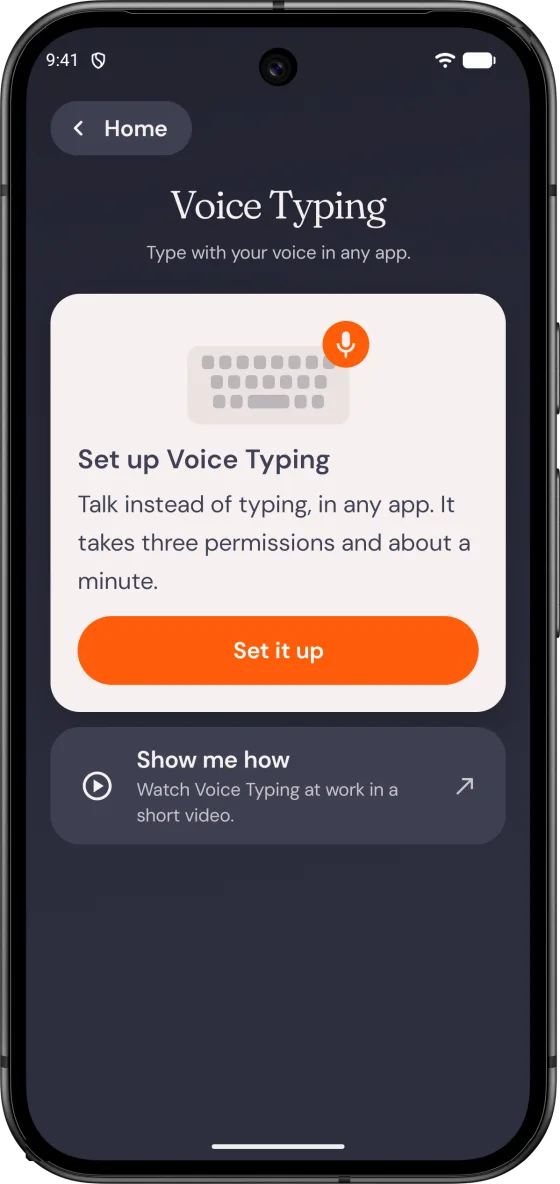
On Android: set up Voice Typing once to talk instead of type in any app.
Turn it on
How do I turn on Simple mode?
1. Open AudioPen
Open the AudioPen app on the iPhone or Android phone you want to make easier to use.2. Go to Settings
Open Settings in the app. You'll find Simple mode there.3. Turn on Simple mode
Tap Simple mode and turn it on. That's the whole setup.
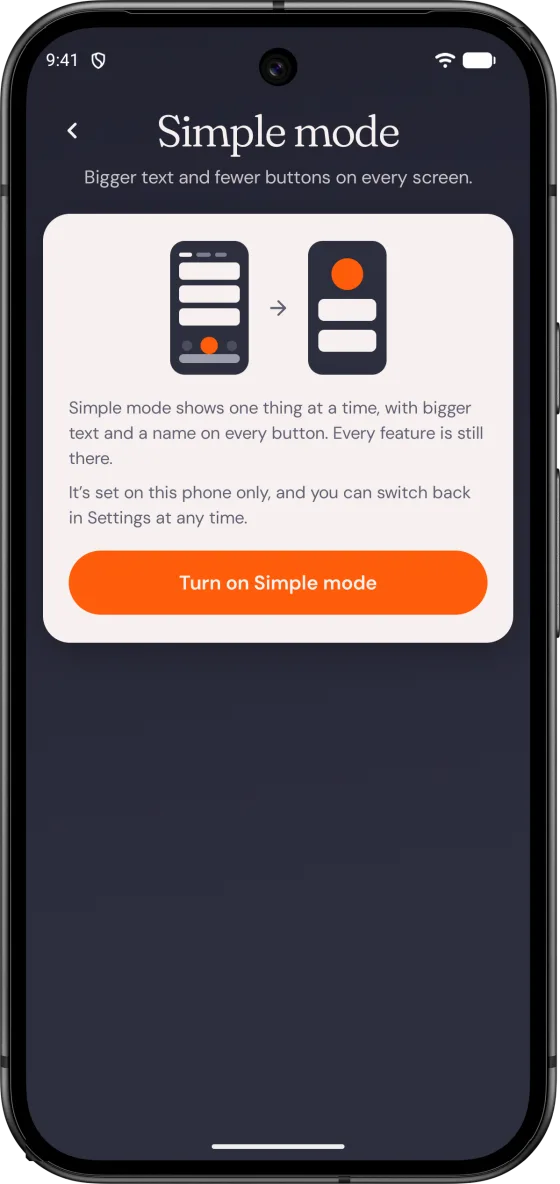
Setting it up for someone else? Do it on their phone. Simple mode is a setting on each phone, so your own AudioPen stays as it is.
Helping a parent record their life story? See how AudioPen turns spoken memories into a written memoir.
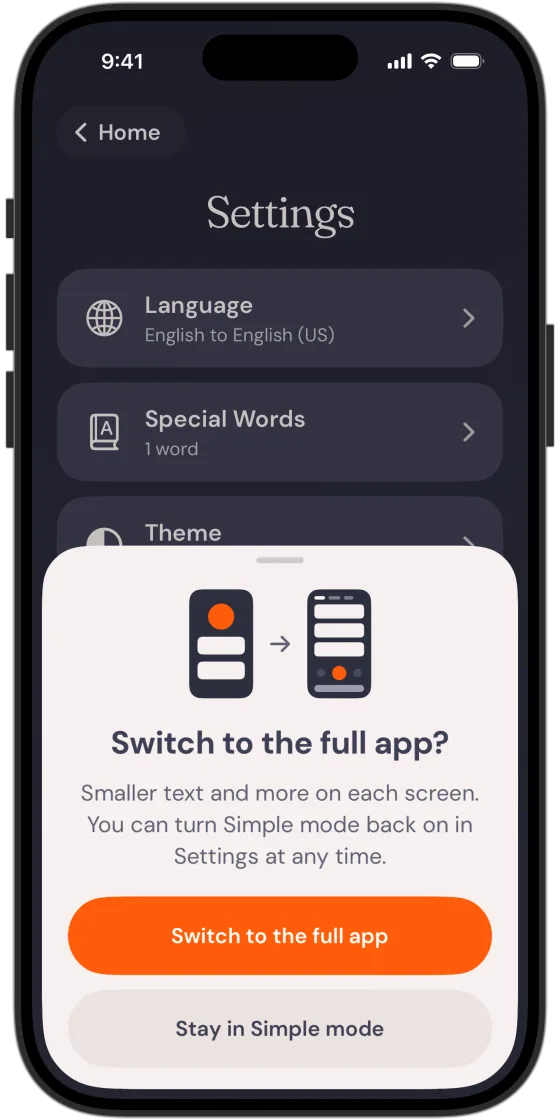
Switch back any time
How do I go back to the full app?
Open Settings, tap Simple mode, then Switch to the full app. You get smaller text and more on each screen again.
Want it again later? Turn Simple mode back on in Settings.