








How to set up the AudioPen keyboard on iPhone
Add the AudioPen keyboard in about a minute, then tap its orange microphone and talk in any app on your iPhone.
The short answer: in AudioPen, tap Keyboard, then Set it up now. In Settings, turn on AudioPen and Allow Full Access. Back in AudioPen, tap I've given it access, then switch to AudioPen with the globe key.
How do you add the AudioPen keyboard on iPhone?
It takes about a minute.
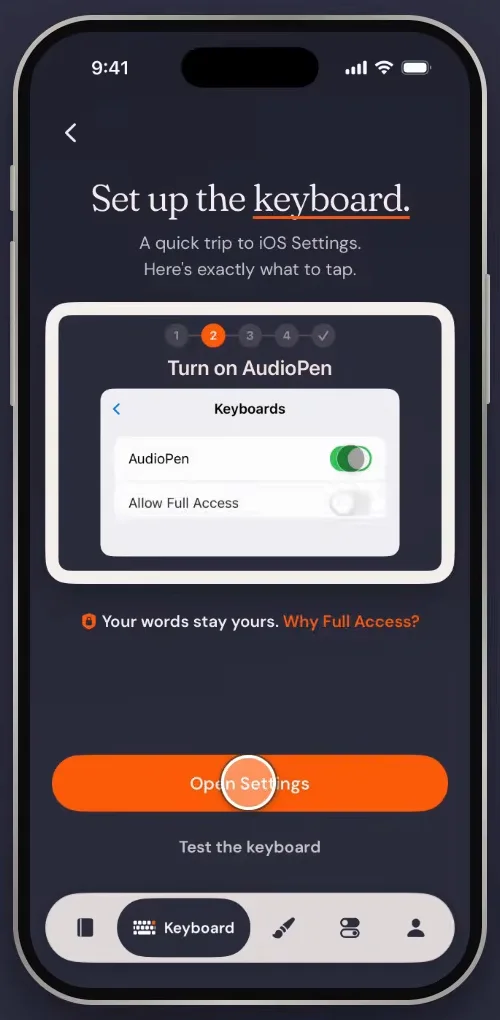
- Open AudioPen and tap Keyboard.
- Tap Set it up now.
- Tap Open Settings.
- Tap Keyboards.
- Turn on AudioPen.
- Turn on Allow Full Access, then tap Allow.
- Tap AudioPen at the top left to go back.
- Tap I've given it access.
- Hold the globe key, then choose AudioPen.
- Tap the orange microphone, talk, then tap the check mark.
- Tap Continue.
Full Access lets the AudioPen keyboard talk to the AudioPen app and your account. You can turn it off, or remove the keyboard, in Settings at any time. iOS also switches to its own keyboard in passcode and other secure fields, so AudioPen won't show up there.
How do you use the AudioPen keyboard in any app?
Once it's set up, you can reply to anyone or write anything way faster than you used to.
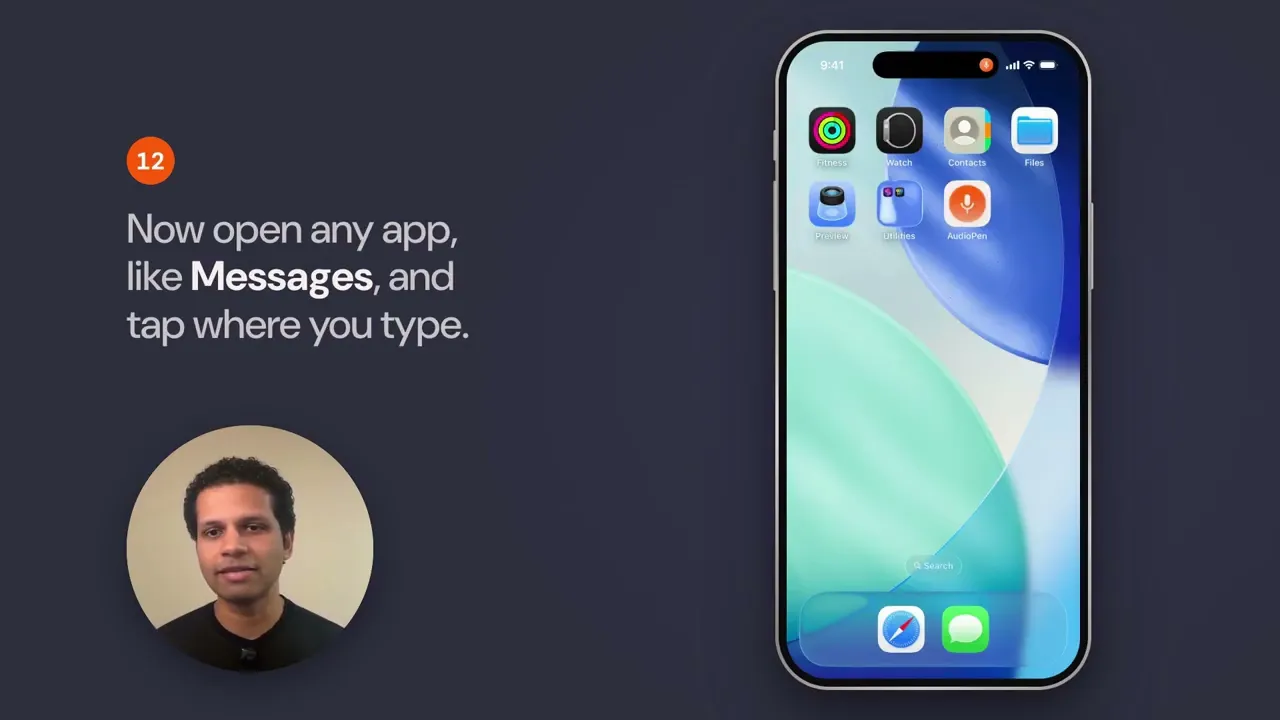
- Open any app, like Messages, and tap where you type.
- Tap the orange microphone and talk.
- Tap Style and pick one, like Clear & Simple.
- Tap the check mark. AudioPen rewrites it in that style, right where you type.
Talk the way you normally talk. If switching keyboards every time gets old, make AudioPen your main keyboard.
Does your voice leave your iPhone?
Only if you want it to. Turn on offline transcription in AudioPen's iPhone app and your audio never leaves the phone. Pick cloud transcription instead and the audio is never saved. When a style rewrites your words, the text goes to the cloud for that step and is thrown away.