









How to set up AudioPen voice typing on Android
Grant three permissions, pick a model, and an orange bubble lets you talk instead of type in any Android app.

The short answer: open AudioPen's Voice Typing tab and grant three permissions: the accessibility service, display over other apps, and the microphone. Pick a Cloud or Local model. Then tap where you type in any app, tap the orange bubble, talk, and tap the check mark.
How do you turn on voice typing in AudioPen?
It takes about a minute.
- Open AudioPen and tap Voice Typing.
- Tap Turn on the accessibility service, then Grant Permission.
- Tap AudioPen Voice Typing.
- Turn it on, then tap Allow.
- Tap Back to AudioPen.
- Tap Allow display over other apps, then turn it on.
- Tap Allow microphone access, then While using the app.
- Pick a transcription model: Cloud or Local.
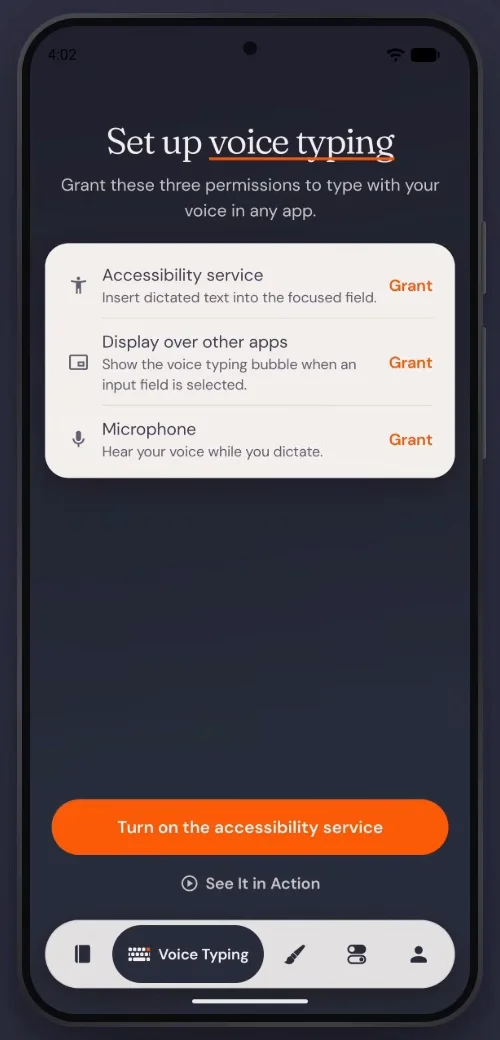
The first two sound bigger than they are. The accessibility service lets AudioPen put your words into the text box you're typing in, and display over other apps lets the bubble float over the app you're typing in.
The bubble doesn't read or store anything else on your screen. You can turn voice typing off, or take any of these permissions back, in Android settings whenever you like.
How do you voice type in any app on Android?
- Open any app, like Messages, and tap where you type.
- Tap the orange bubble and talk.
- Tap the style to choose how it's written.
- Tap the check mark. Your words appear right where you type.
Talk the way you'd say it to a friend. The style decides how it comes out, so the same ramble can land as a tidy text message or a clear email.
Should you pick Cloud or Local?
Want your audio to stay on your phone? Choose Local, and it's transcribed right on the device. With Cloud, it's transcribed online and never saved.
Either way, a style sends the text to the cloud to be rewritten, and nothing is kept. You can switch models any time in the Voice Typing tab of AudioPen's Android app.