


How to set up an iPhone for a parent: easy mode or bigger settings
Assistive Access is the iPhone's easy mode, for a parent who gets lost in the phone. Bigger text and Dictation suit the rest. How to choose and set it up.
The short answer: yes, the iPhone has an easy mode. It's called Assistive Access, and it swaps the Home Screen for a few big buttons. It suits a parent who gets lost in the phone. If yours can find their way around but struggles to read the screen or type, bigger text and Dictation do the job, and nothing gets locked away.
Not sure which your parent needs? Start with bigger settings. You can always add Assistive Access later. Whichever you pick, set it up so you can still help when something goes wrong.
How do you simplify an iPhone for a parent?
Assistive Access is Apple's simplified version of iOS. Apple built it for people with cognitive disabilities, and a family member or caregiver can set it up for them. Your parent sees only the apps you picked, and everything else stays out of sight until you exit.
That's the right trade if your parent opens the wrong app, can't find their way back, or only ever calls, texts and looks at photos. It's the wrong one if they're sharp but can't see small text, or if they bank, book appointments and check the weather on the phone. As one person who tried it put it on Reddit, it "really isn't intended to be an alternative for average or power users." Those parents need the same iPhone, made easier to read.
Two ways to make an iPhone easier
Assistive Access
For a parent who gets lost in the phone
- A few big buttons instead of the Home Screen
- Only the apps you choose
- Calls and messages from the people you allow
- You exit it for updates, new apps and settings
Bigger settings
For a parent who knows the phone but can't read or tap it easily
- The same iPhone, with bigger, bolder text
- Every app and setting where it always was
- Nothing to unlock or exit
- Dictation for anything they'd rather say than type
How to set up Assistive Access on iPhone
Do it on their phone, with them there.
- Open Settings, tap Accessibility, then Assistive Access, then Set Up Assistive Access.
- Check that the Apple Account shown is your parent's own. If it's yours, tap Change Apple Account and sign in with theirs.
- Pick the apps they'll see. Calls, Messages, Camera, Photos, Music and Magnifier come in a big-button design. Most other apps can be added too, in their usual design.
- Choose Rows, an easy-to-read list, or Grid, with bigger pictures and icons.
- Check they know the passcode that unlocks the phone.
- Set the Assistive Access passcode, and add a recovery Apple Account when it offers one.
- Tap Start Using Assistive Access.
Keep that second passcode safe. It's not their phone passcode. It's the one that lets anyone in or out of Assistive Access, and if it's forgotten and there's no recovery Apple Account, the iPhone has to be reset.
Before you hand it back, look at Calls and Messages. Each can take calls and messages from anyone, from contacts, or from favorites only. Pick favorites, and a new doctor's office can't reach them until you add it.
How to make text bigger on iPhone without Assistive Access
Open Settings, tap Accessibility, then Display & Text Size. Tap Larger Text and drag the slider until your parent can read it comfortably at arm's length. Turn on Larger Accessibility Sizes if the biggest setting still isn't big enough. Bold Text is on the same screen, and it helps more than you'd think.
Display Zoom makes icons and buttons bigger as well as text, so there's more to aim at. If the screen's movement bothers them, turn on Reduce Motion in Settings, Accessibility, Motion.
Then spend ten minutes showing them how to use it. One person on Reddit who set up their 83-year-old uncle's iPhone called this the important one: show him how to tap, not swipe. Swiping, they guessed, was how he kept turning on Do Not Disturb.
How to get iPhone out of easy mode
Triple-click the side button, or the Home button on an iPhone that has one. Tap Exit Assistive Access and enter the Assistive Access passcode. To turn it back on, go to Settings, Accessibility, Assistive Access, Start Assistive Access.
You'll do this more than you expect. Inside Assistive Access there's no Settings app, so software updates, new apps and app permissions all wait until someone exits. If you're the one who knows the passcode, that someone is you.
How to control your parent's iPhone from far away
FaceTime can do it. On a one-to-one FaceTime call, your parent shares their screen. Tap the shared screen and ask to control it. Once they tap Allow, you can tap, swipe and type on their iPhone from yours. You both need iOS 18 or later, and it isn't available in the EU. Apple may stop you from changing their Apple Account or Face ID settings, making payments or erasing the phone this way.
Before you leave them with the phone, sort out the things that are hard to fix from a distance:
- Add yourself as a Recovery Contact on their Apple Account: Settings, their name, Sign-In & Security, Recovery Contacts. If they get locked out, you can give them a code to get back in.
- Fill in their Medical ID in the Health app and turn on Show When Locked, so paramedics can see it without the passcode.
- Make sure they know Emergency SOS: press and hold the side button and either volume button.
- Write down both passcodes and put them somewhere you'll both find them: their phone passcode and, if you set it up, the Assistive Access one.
- Save yourself as a contact on their phone. FaceTime remote control only works with someone in their contacts.
Can your parent write without typing? Turn on Dictation
Typing is where a lot of parents give up, especially with stiff fingers. Dictation lets them talk instead. Turn it on in Settings, General, Keyboard, Enable Dictation. After that, the microphone key on the keyboard types whatever they say, in Messages, Mail or anywhere else they can type. In many languages it runs on the iPhone itself, with no internet connection.
Set up AudioPen's Simple mode on iPhone
Dictation is fine for a quick text. A note to the family, or a story they want to get down, comes out better when something tidies it up. That's AudioPen's job.
I built Simple mode in AudioPen's iPhone app for people who want an app that's really easy to understand: bigger text, fewer buttons, one thing at a time and a name on every button. I had less tech-savvy people in mind, older adults especially. Every feature is still there.
Simple mode changes the AudioPen app, not the rest of the iPhone.
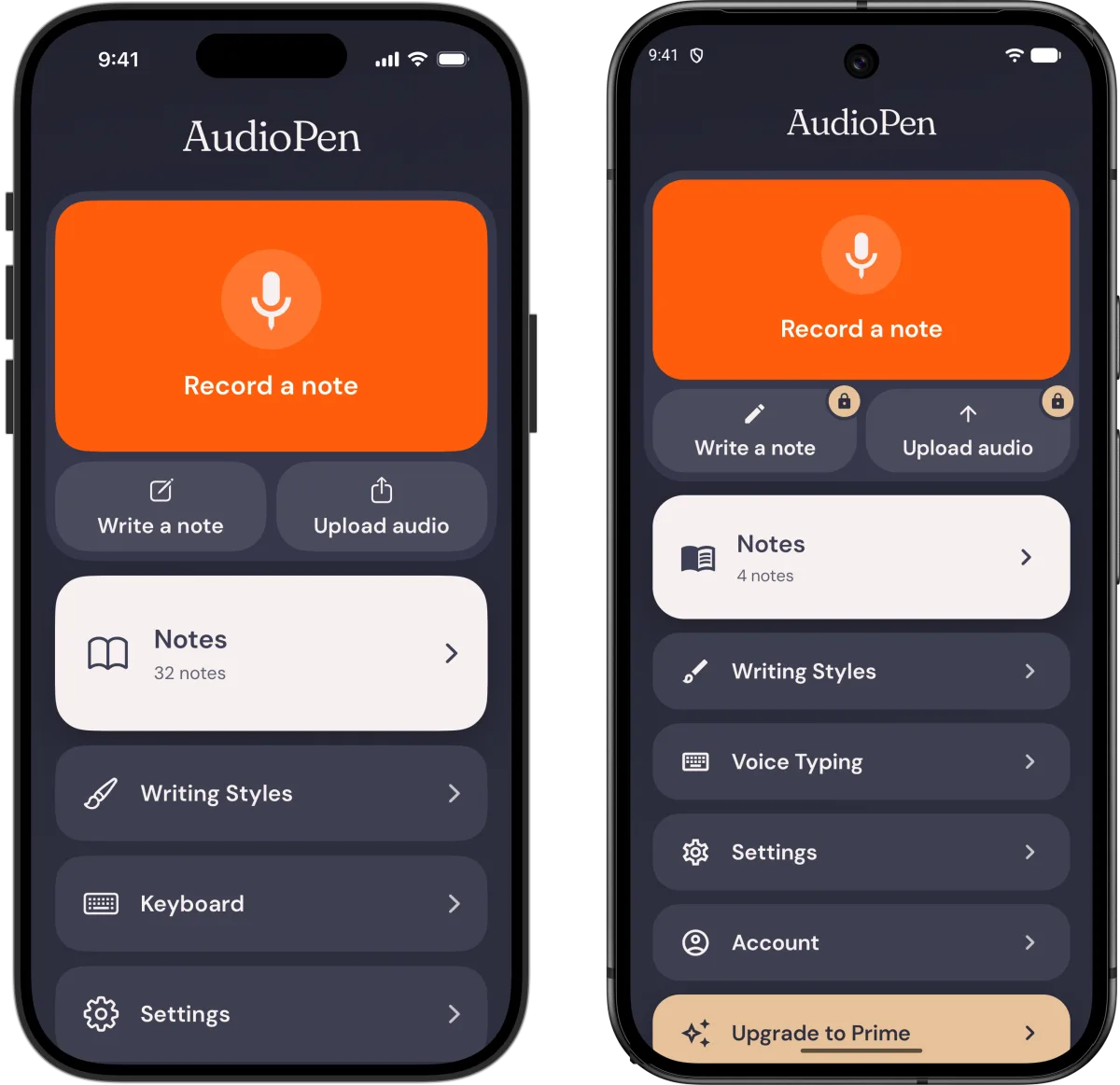
- On their iPhone, install AudioPen from the App Store.
- Open Settings in the app and turn on Simple mode. It only applies to that phone.
- Show them the big Record a note button. They talk, and AudioPen writes it up.
- If they ever want the full app back, it's in Settings: tap Simple mode, then Switch to the full app.
AudioPen is free to start, with recordings up to 3 minutes on the free plan. If they'd rather the audio stayed on the phone, turn on offline transcription in the app. There's more on what changes, with screenshots, on the Simple mode page.