

Simple mode on Android: how to make a phone easier for a parent
Samsung and Motorola call it Easy mode, OnePlus Simple mode and a Pixel Simple View. Where each one is, what it changes and how to turn it off.
The short answer: Android has no single easy mode. Samsung, Motorola, OnePlus and Google each build their own, and they don't do the same job. Samsung's mostly makes things bigger. Motorola's, OnePlus's and the Pixel's also give the phone a simpler home screen.
Pick by what your parent finds hard. If it's reading and tapping, make things bigger. If they get lost in the phone, give them fewer things to get lost in. Either way, know how to get back out.
Which Android phones have Easy Mode?
Samsung, Motorola, OnePlus and Google Pixel phones do, each under its own name and in its own place.
| Phone | Called | Where | What it changes | To turn it off |
|---|---|---|---|---|
| Samsung Galaxy | Called:Easy mode | Where:Settings, Display, Easy mode | What it changes:Bigger icons, text and spacing, a high contrast keyboard, fewer accidental touches | To turn it off:Turn the same switch off |
| Motorola | Called:Easy mode | Where:Settings, System, Easy mode | What it changes:An essentials-only home screen, larger text and icons, three-button navigation | To turn it off:Tap Restore Normal mode |
| OnePlus | Called:Simple mode | Where:Settings, Special features, Simple mode | What it changes:A simpler home screen with larger icons and fonts | To turn it off:Open Settings and tap Exit Simple mode |
| Google Pixel | Called:Simple View | Where:Settings, Accessibility, Simple View | What it changes:Larger text and icons, a simpler home screen, three-button navigation, higher touch sensitivity | To turn it off:Turn off Use Simple View in the same place |
Another brand? Open Settings and search for "easy" or "simple". If neither turns up, start with the Font size and Display size steps in the Pixel section below.
Is Samsung Easy Mode good for seniors?
Yes, if your parent's trouble is seeing and tapping. Samsung's Easy mode enlarges what's on screen, adds a high contrast keyboard and helps prevent accidental touches. It's still the phone they know, only easier to read and harder to mis-tap.
If your parent gets lost instead, bigger buttons won't fix it. That's the parent who opens the wrong app and can't find the way back. On a Motorola, a OnePlus or a Pixel, the phone's own mode also simplifies the home screen. On a Samsung, do that part by hand: one home screen page with the few apps they use, and nothing else on it.
Not sure which your parent needs? Start with bigger. You can always clear the home screen later.
Samsung Easy mode: how to turn it on and off
- Open Settings and tap Display.
- Tap Easy mode.
- Tap the switch to turn it on.
Tap the same switch again and it's off.
Can't find Easy mode on your parent's Samsung? Some models don't have it. Two settings in the same Display menu get you most of the way. Screen zoom makes everything bigger, and Font size and style makes the text bigger. On a Galaxy Z Fold, Screen zoom is called Screen layout and zoom.
Easy mode on Motorola
Yes, Motorola has one. It does more than make things bigger. It gives the phone an uncluttered home screen with just the essentials, larger text and icons, and three-button navigation, so your parent taps buttons at the bottom of the screen instead of swiping. Every app is still there: swipe up from the bottom of the screen to see them all.
To turn it on, open Settings, tap System, then Easy mode, and tap Apply Easy mode. If it's been on before, the button says Restore Easy mode instead. To leave it, go back to the same screen and tap Restore Normal mode. The phone goes back to its old font, display and layout.
Simple mode on OnePlus
OnePlus calls it Simple mode. It trims the home screen down and makes the icons and fonts larger. On OxygenOS 14 it's in Settings, Special features, Simple mode. Newer versions can put it somewhere else, so search Settings for "Simple mode" if it isn't there.
To get back out, open Settings while Simple mode is on and tap Exit Simple mode.
How do you change a Pixel to simple mode?
Pixel phones call it Simple View. Open Settings, tap Accessibility, tap Simple View under Quick access, and turn on Use Simple View. It makes the text and icons larger, simplifies the home screen and the navigation buttons, and raises touch sensitivity. Turn it off in the same place and the phone goes back to its original font, display and layout settings.
To make things bigger by hand instead, open Settings, search for Font size, and drag the slider until your parent can read the text at arm's length. It goes up to 200%, though some apps ignore it. Then search for Display size and drag that slider too, so icons and buttons get bigger, not just the words. Last, go to Accessibility, then Display size and text, and turn on Bold text.
Some of the Font size and Display size steps need Android 13 or later.
Android Easy Mode: what it leaves alone
Easy mode changes the home screen. It leaves alone the panel that slides down from the top, full of switches a stray thumb can flip. One family's parents kept turning airplane mode on and couldn't work out how to switch it back off.
Take those switches out of the panel. Swipe down twice from the top of the screen, tap Edit, and remove the tiles your parent doesn't need. Airplane mode is a good one to start with.
Look at the home screen each time you visit, too. A parent who taps ads can end up with a new home screen app they never meant to install, with ads of its own. If one appears, uninstall it, and don't install a home screen app you haven't tried yourself.
While you have the phone in your hand, set up three more things:
- Set up Emergency SOS. In Settings, tap Safety & emergency, then Emergency SOS. After that, pressing the power button 5 times or more calls for help. It needs Android 12 or later, and it doesn't work in airplane mode or with Battery Saver on.
- Put their emergency info on the lock screen. Add their medical information and emergency contacts in the Safety app, then turn on Show when locked so anyone who picks up the phone can see it. Some phones keep this somewhere else, so search Settings for emergency.
- Know how you'll help from far away. On a Google Meet call, they can share their screen, so you see exactly what they see and can talk them through it.
Simple mode in the AudioPen app for Android
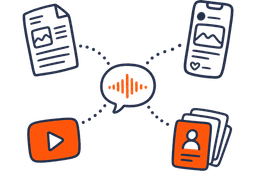
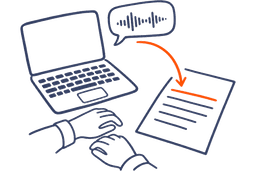
Your parent wants to send the family a long message and gives up halfway through typing it. For a short reply, Gboard's microphone does the job: tap it at the top of the keyboard, wait for "Speak now", and talk. For anything longer, AudioPen turns what they say into clear writing.
I built Simple mode into AudioPen's Android app for people who want an app that's really easy to understand. It shows one thing at a time, with bigger text and a name on every button. Every feature is still there. It's set on that phone only, so your own AudioPen stays as it is.
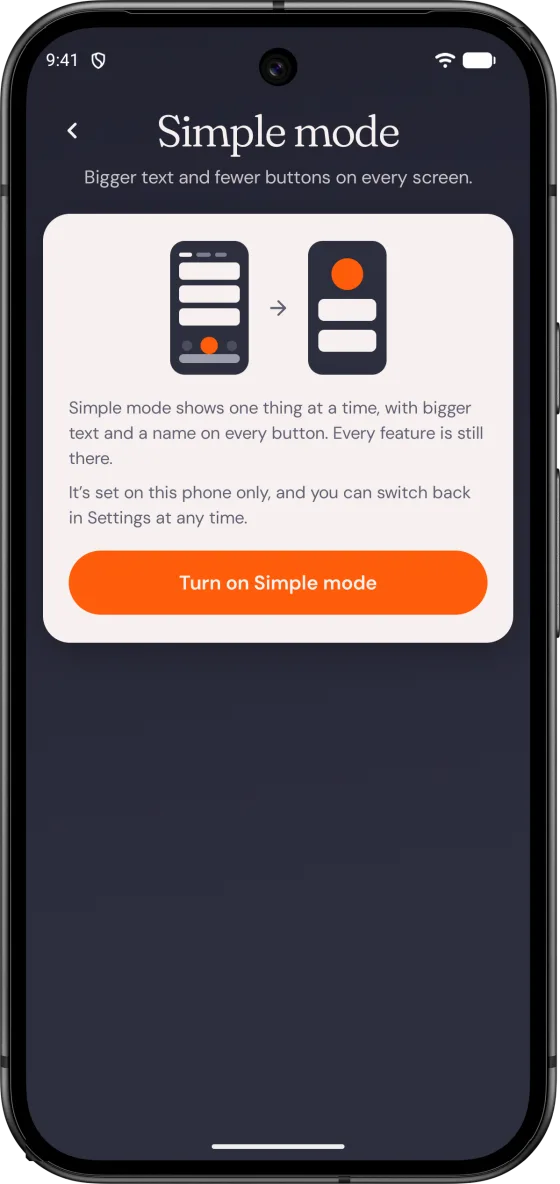
Turn on Simple mode in AudioPen for Android
- On their phone, install AudioPen from Google Play and sign up with their own email.
- In the app's Settings, find Simple mode and tap Turn on Simple mode.
- Show them the big Record a note button. They talk, and AudioPen writes it up.
- To talk into WhatsApp and Messages too, open Voice Typing in the app and set it up once.
- If they ever want the full app back, open Settings, tap Simple mode, then Switch to the full app.
AudioPen is free to start, with recordings up to 3 minutes on the free plan. If they'd rather the audio stayed on the phone, turn on offline transcription in the app. There's more on what changes, with screenshots, on the Simple mode page. If your parent has an iPhone instead, here's how to make an iPhone easier.