







How to dictate in Outlook
Outlook's Dictate button comes with Microsoft 365. How to use it, why it might be missing, what to use on your phone, and how to get an email you'd send.
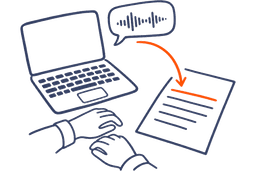
The short answer: To dictate in Outlook, start an email, click in the body, go to the Message tab and select Dictate. On a Mac, Option+F1 works too. It needs Microsoft 365 and an internet connection. On a phone, use your keyboard's microphone. Outlook types your words as you said them. AudioPen's voice typing can write them up as an email first.
Outlook has a Dictate button, and whether you can use it depends on which Outlook you have. It needs a Microsoft 365 subscription, a microphone and a reliable internet connection, and it works in Outlook on your computer and on the web. Not on your phone, though. Microsoft retired dictation from the Outlook app on iPhone and Android, starting in September 2024.
Once it's on, Dictate gives you your words as you said them, with the punctuation you speak out loud. For “Got it, thanks” that's all you need. For anything longer, a word-for-word copy of your thinking reads badly in an email to someone else.
Below: how to get Dictate working, what to use when your Outlook doesn't have it, and how AudioPen's Windows and Mac apps write up what you said as an email before it lands in Outlook.
Use Dictate in Outlook
- Start a new email or reply to one, then click in the body of the message.
- Go to the Message tab and select Dictate. This works in new Outlook, classic Outlook and Outlook on the web, while you're signed in to Microsoft 365.
- On a Mac, go to Message > Dictate in Outlook for Mac, or press Option+F1.
- In Outlook on the web, let your browser use the microphone. If it doesn't start, refresh the page, select Dictate again and give the browser permission.
- Talk. Say punctuation by name, like “period”, “question mark” and “new line”. For an email address, say “at sign” where the @ goes.
- Paused and want to carry on? In new Outlook, press ALT+` or select the Mic icon in the ribbon.
Can't find Dictate, or it won't start
No Dictate button? It comes with Microsoft 365
Dictate is only for Microsoft 365 subscribers, so first make sure you're signed in. Office 2016 and 2019 for Windows don't have Dictate without Microsoft 365. If that's your Outlook, there's no button to find. Press Windows key+H with your cursor in the email instead. Windows voice typing types into any text box, so it works in every Outlook on Windows 10 and 11.
The button is there, but nothing happens
Click in the body of the email before you select Dictate. Check that your microphone works and your connection is reliable, because Dictate needs both. It only runs on Windows 10 and later. In Outlook on the web, refresh the page, select Dictate again, and allow the browser to use your microphone when it asks.
On a phone, Microsoft retired it
Dictation in the Outlook app on iPhone and Android was retired starting in September 2024. Use the microphone on your keyboard instead. On iPhone, turn on Enable Dictation, then tap the microphone on the keyboard. It works anywhere you can type, Outlook included. On Android, tap the microphone at the top of Gboard.
It types your words, not an email
Dictate's settings let you change the spoken language, turn on auto punctuation if your language has it, and use a profanity filter that swaps sensitive phrases for ***. None of them removes filler words or tightens a rambling paragraph. Windows voice typing can fix grammar, punctuation and filler words as you speak, but only on Copilot+ PCs. Word has the same Dictate button, with the same limits: see voice typing in Word.
Which dictation works in your Outlook
Find your Outlook below. Built in means Outlook's own Dictate, or your computer's or phone's dictation where Outlook has none. AudioPen can write up what you said as an email first.
| Your Outlook | Built in | With AudioPen |
|---|---|---|
| New Outlook for Windows | Built in:Message tab > Dictate, with Microsoft 365. ALT+` resumes after a pause. | With AudioPen:Hold the Windows app's hotkey, or double-tap it for a rewrite. |
| Classic Outlook for Windows | Built in:Message tab > Dictate, signed in to Microsoft 365. | With AudioPen:The same hotkey. Classic or new makes no difference. |
| Outlook on the web | Built in:Message tab > Dictate. Allow your browser to use the microphone. | With AudioPen:The Mac or Windows app types into your browser like any text field. |
| Outlook for Mac | Built in:Message > Dictate, or Option+F1, with Microsoft 365. | With AudioPen:The Mac app's hotkey, on Apple Silicon Macs. |
| Outlook on iPhone | Built in:The microphone on your keyboard, with Enable Dictation turned on. | With AudioPen:The AudioPen keyboard, right in the Outlook app. It's on iPad too. |
| Outlook on Android | Built in:The microphone at the top of Gboard. | With AudioPen:The floating AudioPen bubble, over your Outlook reply. |
| Office 2016 or 2019 for Windows, no Microsoft 365 | Built in:No Dictate. Press Windows key+H instead. | With AudioPen:The Windows app's hotkey. No Microsoft 365 needed. |
Windows key+H needs an internet connection, a working microphone and your cursor in a text box. On a Mac, fall back on Mac Dictation: press the Microphone key, use your Dictation shortcut, or choose Edit > Start Dictation.
Have it written up before it lands in Outlook
AudioPen's voice typing works in Outlook the way it works in Gmail, Slack or Notion. You don't connect anything or install an add-in. AudioPen types wherever your cursor already is. Classic Outlook, new Outlook, Outlook for Mac and Outlook in a browser all work. So does an Outlook that came without Microsoft 365.
On a Mac or Windows computer there are two ways to use it. Press and hold the hotkey, talk, and let go, and clean, formatted text lands at your cursor. That's the one for a quick line. Double-tap the hotkey, talk, and tap it again, and AudioPen rewrites what you said in the style you picked before it types it in. That's the one for a paragraph. On iPhone, iPad and Android you talk through the AudioPen keyboard or the floating AudioPen bubble.
For email, the double-tap is the one to use. Start your reply, double-tap, and talk it through the way you'd explain it to a colleague at the next desk. Tap again, and AudioPen types it in as an email, in the style you picked: Formal Email for a client, Casual Email for your team, or a style made from a sample of your own writing, so it still sounds like you. If you're building the habit, drafting emails by talking has more.
Each dictation lands where your cursor is and in a typing history. It never becomes a note in your AudioPen library. You choose how it transcribes: turn on the offline option in the Mac, Windows, iPhone or Android app and the audio never leaves your device, or use cloud transcription, where the audio isn't saved. The rewrite step runs in the cloud, and nothing from it is stored.
The free plan includes voice typing with a limited number of sessions, and every writing style, including the ones you make. AudioPen Prime makes voice typing unlimited.
Tips for talking your Outlook replies
- Reply from the reading pane. Select the message, start the reply, and talk only your answer. The person reading it already has the thread.
- If Dictate keeps mishearing you, check its language. It starts in English (United States), and you can change the spoken language in Dictate's settings.
- Check your language. Microsoft marks some dictation languages as preview, and those may be less accurate or have less punctuation support.
- Take a breath when you need one. In new Outlook, ALT+` picks dictation back up, so you don't have to reach for the ribbon.
Sources
- Microsoft Support: Dictate your emails in Outlook
- Microsoft Support: Dictate your emails in Outlook Mobile
- Microsoft Support: If dictation in Office isn't working
- Microsoft Support: Use voice typing to talk instead of type on your PC
- Mac User Guide: Use dictation on Mac
- iPhone User Guide: Dictate text on iPhone
- Gboard Help: Type with your voice
More guides
- How to set up an iPhone for a parent: easy mode or bigger settings
- How to choose a voice journal app
- The best speech to text apps for Android
- The best dictation apps and software
- How to draft emails by talking
- How to voice type in Google Docs
- How to voice type in Microsoft Word
- How to voice type in Gmail
- How to voice type in ChatGPT
- How to voice type in Claude
- How to voice type on a Mac
- How to do a brain dump and turn it into a plan