





How to use speech to text in WhatsApp
WhatsApp can turn a voice message into text on your phone. How to turn it on, what to do when it can't, and how to type a reply by talking.
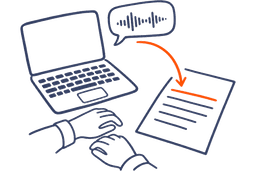
The short answer: Speech to text in WhatsApp means one of two things: reading a voice message you got as text, or typing a message by talking. To read one, turn on voice message transcripts in WhatsApp's settings, then tap and hold the voice message and tap Transcribe. To send text, tap the microphone on your keyboard, because the one beside WhatsApp's message box records a voice message. For everything else, AudioPen's free converter turns a voice message file into text, and its voice typing writes your reply as a plain transcript or in a style you pick.
Someone sends you a three-minute voice note while you're in a meeting, or on a train with no headphones. WhatsApp can turn it into text, on your phone and in some languages. Once the note is in a language WhatsApp doesn't read, or you're on WhatsApp on your computer, you're left with audio you can't play right now.
Sending has its own catch. The microphone next to WhatsApp's message box sends your voice as audio, and the microphone on your keyboard types it as text. AudioPen picks up where both stop: a free converter for the voice note, and voice typing for your reply.
Turn a WhatsApp voice message into text
- On Android, open WhatsApp's Settings, tap Chats and turn on Voice message transcripts. They stay off until you do.
- Choose the language your voice messages are in, then tap Set up now, or Wait for Wi-Fi to download it later.
- On iPhone, turn on Voice message transcripts in WhatsApp's settings. You need iOS 16 or newer, with Siri turned on.
- Tap and hold a voice message, then tap Transcribe. The text shows up for you to read, and the sender can't see it.
When WhatsApp can't transcribe it
Your language isn't on the list
On Android, transcripts work in English, Portuguese, Spanish and Russian. On iPhone, the list depends on your version of iOS. For a voice note in any other language, use the converter below.
You're on WhatsApp Web or the desktop app
WhatsApp only offers transcripts on certain devices. On WhatsApp Web and the Windows and Mac apps, they may not be there for you yet. If you don't see Transcribe, get the voice message off your phone instead.
Get the voice message off your phone
Do this on your phone. On iPhone, tap the voice message, then Forward, choose email and send it to yourself. For every voice message in a chat, use Export chat > Attach Media. On Android, Export chat with Include media attaches the chat's most recent media, so an older voice note may not come with it.
Turn the file into text with AudioPen
Upload it to AudioPen's free audio to text converter. It reads WhatsApp voice messages, takes files up to 60 minutes and 100 MB, and needs no account. You get the text in the language the message was spoken in. The file is uploaded only to be transcribed and deleted as soon as the transcript is ready.
Voice to text in each WhatsApp
Find your WhatsApp below. Read is for a voice message you got. Type is for sending text by talking.
| Your WhatsApp | Built in | With AudioPen |
|---|---|---|
| iPhone | Built in:Read: transcripts, on iOS 16 or newer with Siri on. Type: the microphone on your keyboard. | With AudioPen:Type: the AudioPen keyboard, right in WhatsApp. It's on iPad too. Read: the converter, for a voice message you emailed to yourself. |
| Android | Built in:Read: transcripts, in the four languages above. Type: the microphone at the top of Gboard. | With AudioPen:Type: the floating AudioPen bubble, over your WhatsApp chat. Read: the converter, for a file from Export chat. |
| WhatsApp Web | Built in:Read: transcripts may not be available. Type: Windows key+H, or Mac Dictation. | With AudioPen:Type: the Mac or Windows app's hotkey, into WhatsApp in your browser like any text field. Read: the converter. |
| WhatsApp for Windows | Built in:Read: transcripts may not be available. Type: Windows key+H. | With AudioPen:Type: the Windows app's hotkey. Read: the converter. |
| WhatsApp for Mac | Built in:Read: transcripts may not be available. Type: Mac Dictation, with the Microphone key, your Dictation shortcut or Edit > Start Dictation. | With AudioPen:Type: the Mac app's hotkey, on Apple Silicon Macs. Read: the converter. |
Windows key+H needs an internet connection and a working microphone. On a Mac, turn on Dictation in System Settings > Keyboard first.
Talk your reply, send it as text
Press and hold the microphone next to WhatsApp's message box and you're recording a voice message. On iPhone, it sends the moment you lift your finger. To send text, talk into the microphone on your keyboard, or into AudioPen.
AudioPen's voice typing works in WhatsApp the way it works everywhere else: talk, and your words land where your cursor is. For chat, a plain transcript is often the right call: your words as you said them, which is how chat sounds anyway. When the message is long or it matters, like directions for the family group or a reply to your landlord, pick a style and AudioPen writes it up before it lands in the box.
You can also talk in one language and have the message written in another. Say it in the language you think in, and send it in the language they read.
Each dictation lands where your cursor is and in a typing history. It never becomes a note in your AudioPen library. You choose how it transcribes: turn on the offline option in the Mac, Windows, iPhone or Android app and the audio never leaves your device, or use cloud transcription, where the audio isn't saved. The rewrite step runs in the cloud, and nothing from it is stored.
The free plan includes voice typing with a limited number of sessions, and every writing style, including the ones you make. AudioPen Prime makes voice typing unlimited.
Tips for voice to text in WhatsApp
- No microphone on your keyboard? On iPhone, turn on Enable Dictation in Settings > General > Keyboard. If it's still missing, check Settings > Screen Time > Content & Privacy Restrictions > Other Features > Dictation. On Android, make sure Voice typing is on in Gboard and that Gboard is allowed to use the microphone.
- Held WhatsApp's microphone by mistake? Slide to cancel before you let go, and the voice message is deleted instead of sent. On Android, slide left.
- Check times, addresses and names against the audio before you act on them. Android transcripts can be wrong.
Sources
- WhatsApp Help Center: Voice message transcripts (Android)
- WhatsApp Help Center: Voice message transcripts (iPhone)
- WhatsApp Help Center: Voice message transcripts (WhatsApp Web)
- WhatsApp Help Center: How to send voice messages (Android)
- WhatsApp Help Center: How to send voice messages (iPhone)
- WhatsApp Help Center: How to preview a voice message (iPhone)
- WhatsApp Help Center: Share audio notes (iPhone)
- WhatsApp Help Center: Export a chat (Android)
- WhatsApp Blog: Introducing voice message transcripts
- Apple Support: Dictate text on iPhone
- Apple Support: Siri, Dictation & Privacy
- Gboard Help: Type with your voice
- Gboard Help: Voice typing and microphone permission
- Microsoft Support: Use voice typing to talk instead of type on your PC
- Mac User Guide: Use dictation on Mac
More guides
- How to dictate a book
- How to set up an iPhone for a parent: easy mode or bigger settings
- How to choose a voice journal app
- The best speech to text apps for Android
- The best dictation apps and software
- How to draft emails by talking
- How to voice type in Google Docs
- How to voice type in Microsoft Word
- How to use dictation in Gmail
- How to dictate in Outlook
- How to voice type in ChatGPT
- How to voice type in Claude
- How to voice type on a Mac
- How to do a brain dump and turn it into a plan